Password Manager
Password Manager is based on Opensource App Vaultwarden. Vaultwarden is used for securely storing, managing, and sharing sensitive online data such as passwords, passkeys, and credit, debit cards. Running Vaultwarden on Homecloud allows you to store your sensitive data locally in your complete physical and logical control. Each user gets their own private vault for storing their data. Organization can be created to share credentials among select group of users.
Who is it for?
It is suited for everyone from individuals, families to small/mid sized companies.
Key features:
- Access your passwords anywhere: Use your passwords across all devices: phone, laptop, tablet, or browser.
- Sharing of passwords securely: Give need based access to your teams. Team members can share passwords of selected systems.
- Move away from passwords to passkeys: While passkeys are more secure than passwords but can be difficult to manage across devices. With password manager your passkeys get synced across devices.
- Guard against SIM cloning attacks with TOTPs: OTPs are suspectible to SIM cloning so TOTPs offer a secure method for second factor authentication. And no more sharing of OTPs on WhatsApp group with other employees for system login.
- E2E encryption: All data stored encrypted on device with zero knowledge encryption.
Deploy Password Manager
Pre-requisite
Bitwarden client on access devices is used to access the backend Vaultwarden server. Bitwarden client requires a valid SSL certificate on the server for connecting.
When VPN is configured on Homecloud device an SSL certificate is generated and installed automatically. No action is required if you have configured VPN on the device.
If you want to keep the Password Manager only locally accessible (not connected to VPN) then you would need to generate your own SSL certificate and import.Refer to SSL certificate section for details.
Login to Admin console via IP address or VPN name and navigate to Configure > Apps > Passwords. Press the Deploy button. It will pull the required software from project repository and deploy. The version deployed is shown in the Passwords page. The version shown is the latest version tested to be working with Homecloud device. Homecloud team periodically test the latest community version and publish the updates. You can choose to enable automatic updates of the app. Homecloud team only tests the community version for its compatibility with device.
Getting started with Password Manager
On Admin console navigate to Configure > Apps > Passwords > Access
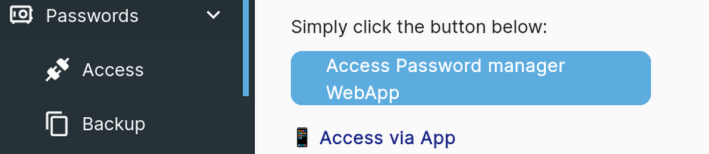
Clicking Access button will take you to Vaultwarden login page. On first login press the Create Account button.
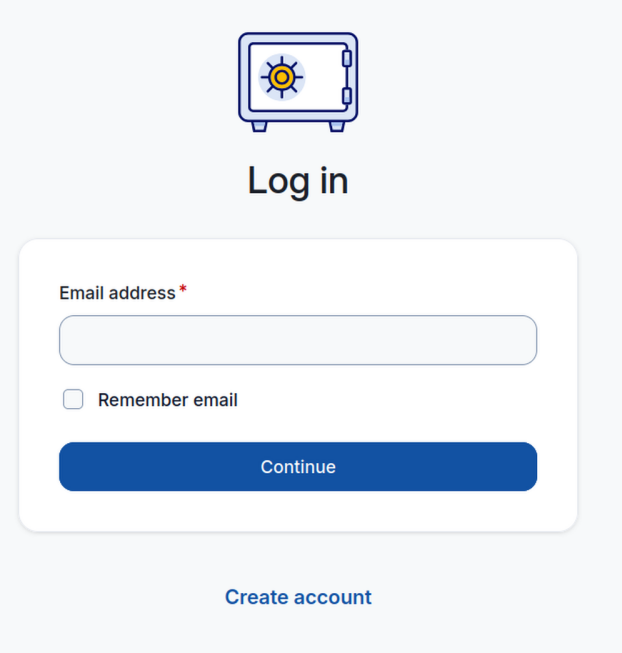
Create your account with Email id (make sure you enter a mail id that you have access to). On next page set your Master password and password hint.
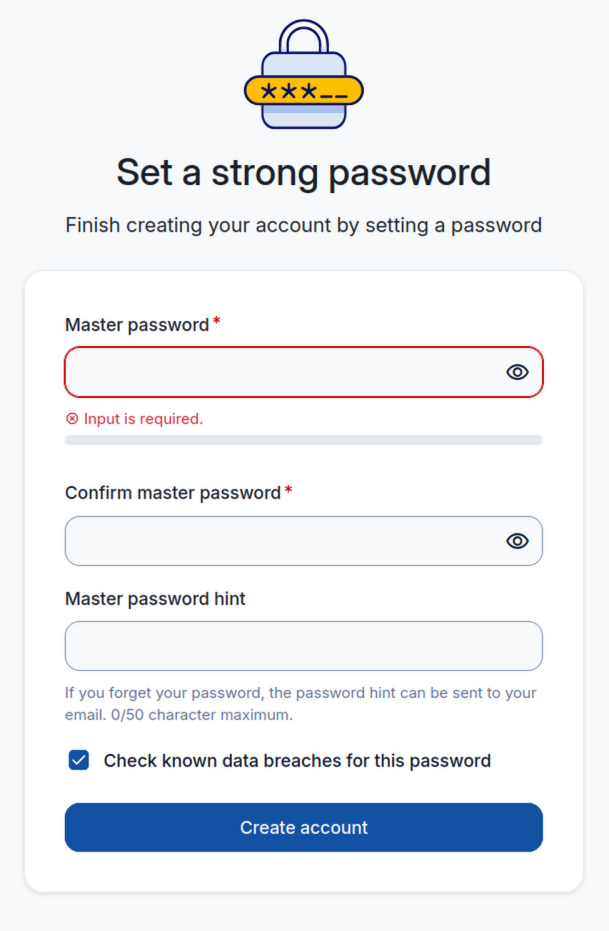
You will use master password to access your private vault. If you forget it then hint will be sent via email to recover.
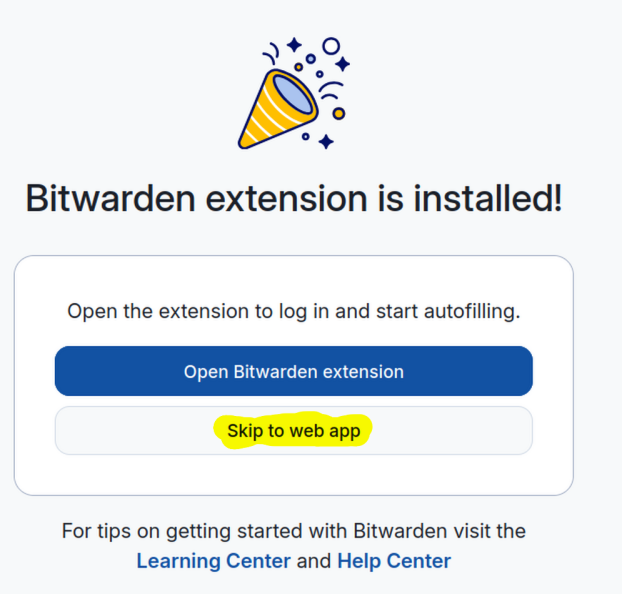
Press 'Create Account' to continue. On the next page install Bitwarden extension and configure as per below instructions.
Each user in your organization can follow same self-signup instructions to create their credentials.
Important: Due to zero knowledge encryption, there is no other way to recover your master password or stored data in vault if you forget master password
Configure Access devices:
Install Bitwarden extension and app on the required access devices. Most browsers have Bitwarden extension. Bitwarden app is available on Android, iOS, Windows, Linux and MacOS. To install the app navigate to https://bitwarden.com/download/
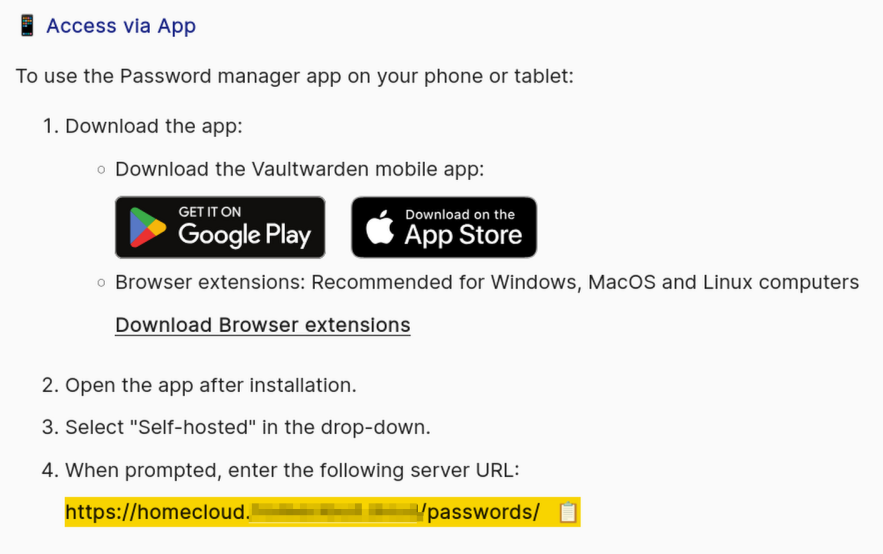
After installing Bitwarden app/extenstion, you need to select "Self-Hosted" in drop down on the login screen.
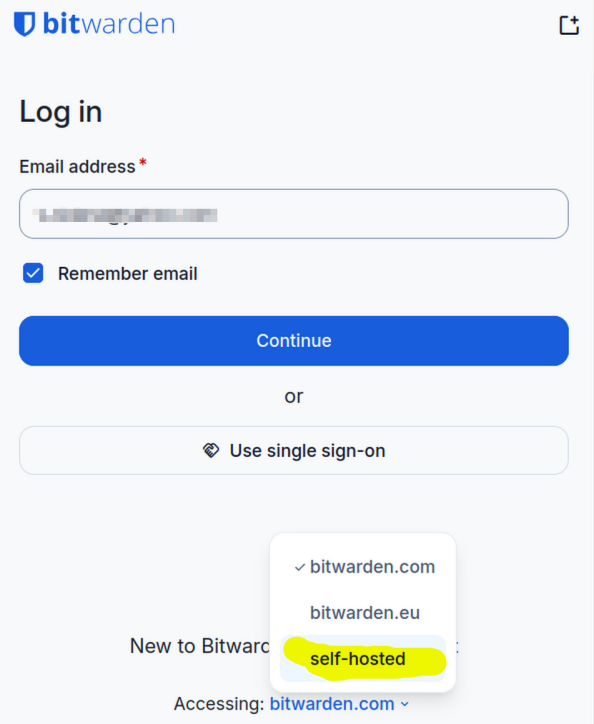
When prompted enter homecloud URL that can be found via Homecloud Admin console.
To find your URL navigate to Configure > Apps > Passwords > Access > Access via App section on Homecloud admin console.
It will be in the highlighted URL at bottom of page.
Private Vaults
After configuring Bitwarden app continue to web app.
Every user gets its own private vault ("My vault"). This vault cannot be shared. It can store credentials, cards, passkeys, TOTPs, Notes, SSH keys. You can create folders under My vault to organize data. E.g. a personal and work folder to seggregate data. Folders can be created either from Bitwarden app/browser extension OR directly from web app.
In WebApp navigate to top right side New > Folder
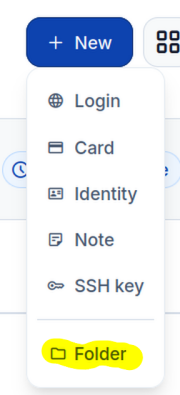
You can created nested folders as required. Same can be done using Bitwarden app.
Vault for Companies
If you are an organization then you can create an Organization which is used to manage users, share credentials and organize for multiple teams. In the web app press + New organization > Enter company name > Email id of administrator for this organization (it should be an existing user in Vaultwarden)
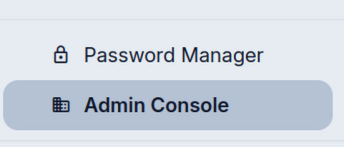
The admin user will now see an Admin console when logged in to WebApp.
Collections: Under organizations to organize and manage data/access there is a concept of collections. You can have separate user access to each collection. Within collection you can define level of access each user has.
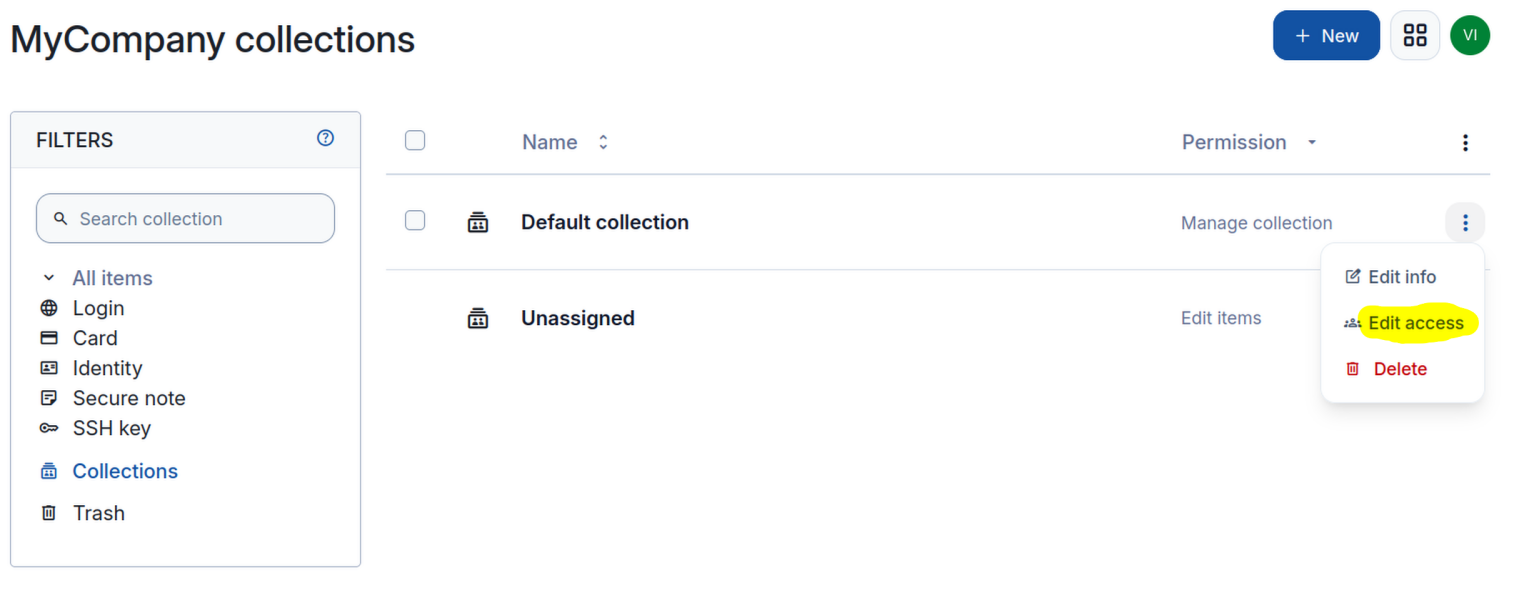
You can create collections per client, per team so you can restrice your employees access to credentials based on their roles/teams. You can revoke their access whenever needed.
Adding users to organization
In the web app navigate to Admin Console > Members > Invite member.
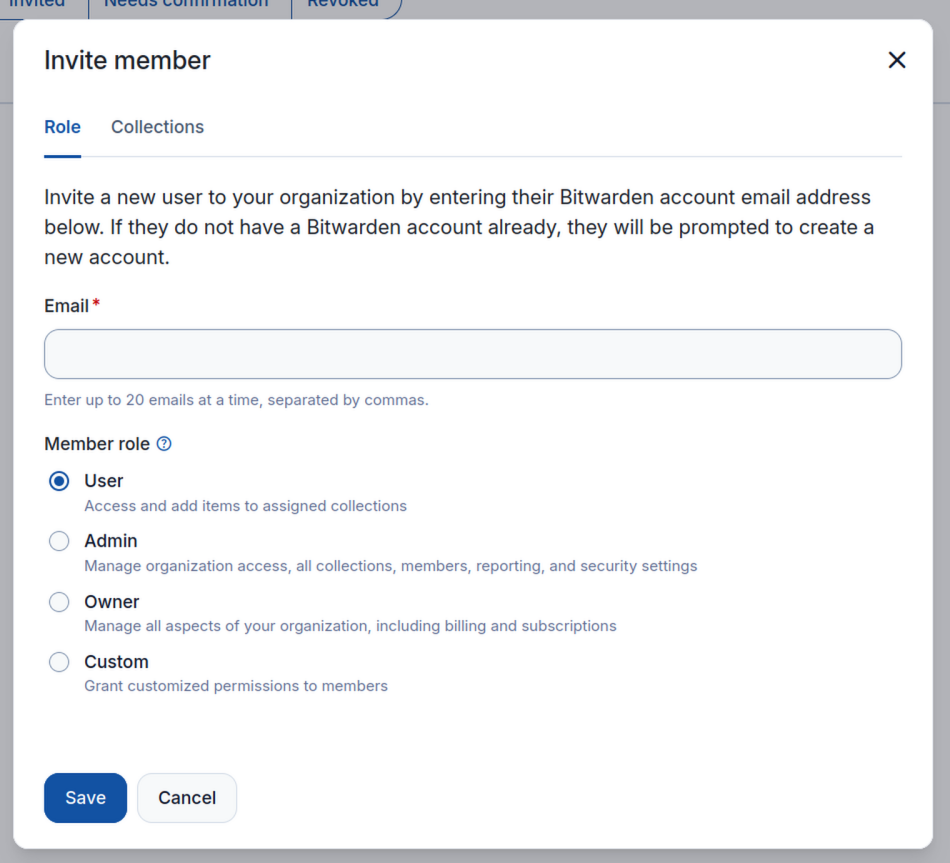
If the user has not yet created their account on Vaultwarden they will be asked to signup first before joining organization.
In the members page you can assign each user role and access to collections.
After assigning required access to collections the user will start seeing data within the collection depending on their assigned role.
Importing data
You can import data in your personal vault or a collection within organization using Bitwarden client or WebApp. Follow instructions at https://bitwarden.com/help/import-data/ to import existing data.
Start storing Credentials, Passkeys, TOTPs
Complete userguide for Bitwarden client is available at: https://bitwarden.com/help/password-manager-overview/