📁 Drive App
Drive app provides network folders to store your files and documents on Homecloud device and access them from any device on the network.
Users
It supports multiple users with access control.
Users are created under Drive app and each user will have their own network folder to store files and documents.
To create a new user, login to admin console and navigate to Configure > Apps > Drive > Users section and click on + button.
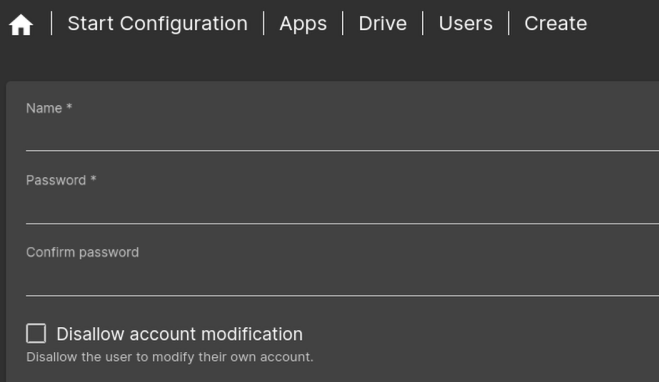
Apply configuration changes when prompted.
Network folder can be accessed over VPN(if configured) or local network using the credentials of the user created under Drive app. It can be accessed from iOS, Android, Windows, MacOS and Linux devices using the credentials of the user created under Drive app. For more information on how to access network folder from different devices, navigate to Configure > Apps > Drive > Access section in admin console and follow the instructions.
Note: Make sure access device is connected to Tailscale VPN network if you are trying to access the network folder remotely over VPN. Navigate to Configure > VPN > Status section in admin console to check if your access device is connected to Tailscale VPN network.
Shared Folders
If you want to share files and documents with other users, you can create shared folders under Drive app.
To create a shared folder, login to admin console and navigate to Configure > Apps > Drive > Shares section and click on + button.
In the create share dialog, enter the name of the shared folder, Disk selection as Internal-Storage, Relative path as duplicati/backups/share-name.
Example if you want to create a shared folder named company-share, the relative path should be duplicati/backups/company-share.
Note: The relative path is case sensitive and should be entered exactly as shown above.
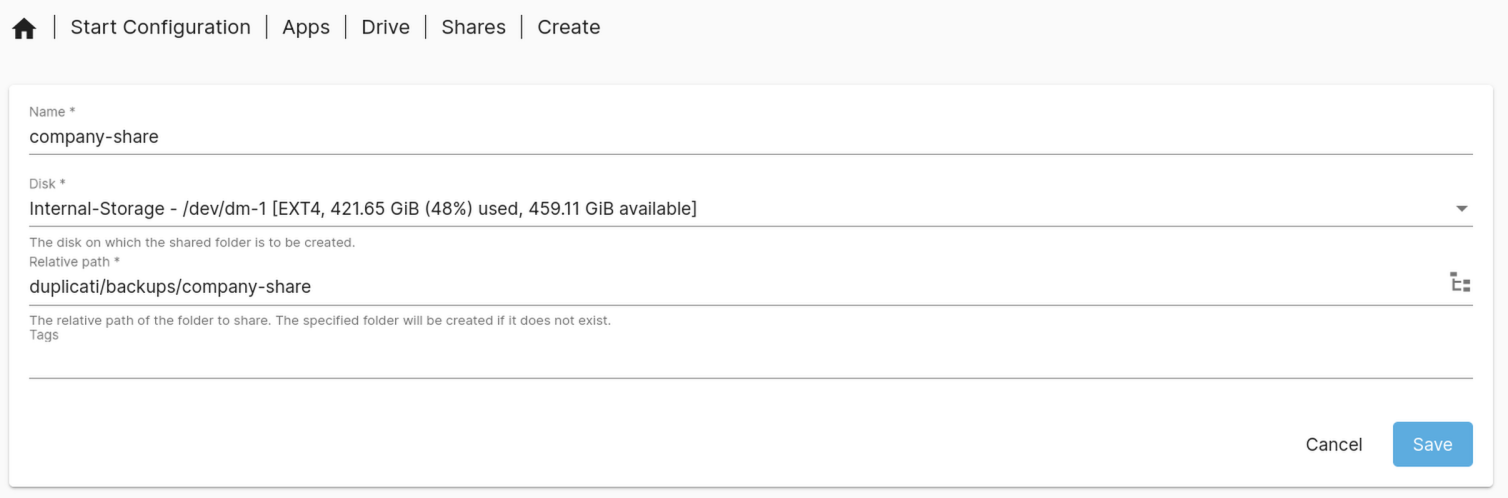
Press Save. Apply configuration changes when prompted.
Using External USB drives as network storage
If you have plugged in external storage device, you can also create shared folders on external storage device.
Once disk is plugged in, select the external storage device from the Disk selection dropdown and enter the relative path where you want to create the shared folder.
This enables you to use external USB drives as network storage and access them from any device on the network.
Access Control
After creating share folders, you can assign access control to users created under Drive app. To assign access control, login to admin console and navigate to Configure > Apps > Drive > Shares section and click on the edit permissions button. Assign read/write, read only or no access to users for the shared folder.
Backing up shared folders
You can backup shared folders to cloud storage or external storage using Duplicati backup software.
Access Duplicati backup software from admin console by navigating to Configure > Apps > CloudBackup > Access section.
Refer to Cloudbackup documentation for instructions on how to configure backup jobs for shared folders.