☁️ Cloud Backup App
Cloud Backup is based on Duplicati backup software and provides encrypted backup of your apps data (Drive, Passswords, Photos, Documents) to cloud storage or external storage.
Duplicati is a free, open-source backup client that securely stores encrypted, incremental, and compressed backups on cloud storage services and remote file servers.
It supports: Amazon S3, IDrive e2, Backblaze (B2), Box, Dropbox, FTP, Google Cloud and Drive, MEGA, Microsoft Azure and OneDrive, Rackspace Cloud Files, OpenStack Storage (Swift), Storj DCS, SSH (SFTP), WebDAV, Tencent Cloud Object Storage (COS), Aliyun OSS, and more.
Deployment
For first time deployment of Cloud Backup app, login to admin console and navigate to Configure > Apps > CloudBackup section, check the box and press Deploy. Version shown in the version field will be deployed. It may take a few minutes to deploy the app. Once deployed, you will see the app status in Status page as Running. To Access the app navigate to Access page and press the Access Duplicati button. It will open Duplicati web interface in a new tab.
Initial password to access Duplicati web interface is in the admin console under Configure > Apps > CloudBackup > Password section. Duplicati app password can be changed by changing admin user password in admin console. To change go to user settings located at top right corner of this page. After changing the password, admin console password and Duplicati app password will be same.
Note: Make sure access device is connected to Tailscale VPN network if you are trying to access the network folder remotely over VPN. Navigate to Configure > VPN > Status section in admin console to check if your access device is connected to Tailscale VPN network.
App Backups
It is recommended to configure backups for your apps data (Drive, Passswords, Photos, Documents) to cloud storage or external storage. Backup templates for apps are provided in Duplicati web interface. You can use these templates to configure backups for your apps data.
Select the backup template for the app you want to backup, press 🖊 button to edit the backup configuration.
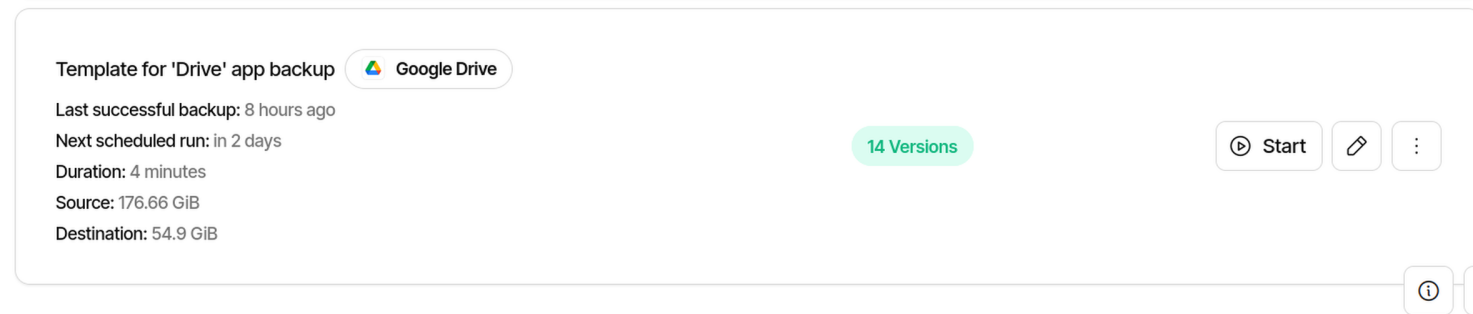
Key things to know in backup configuration:
-
Encrypted Backups: All the backups that are executed by the provided templates are encrypted using AES-256 encryption. The password (also called passphrase)used for encryption is the same as initial Duplicati app password. Locate it by navigating to Configure > Apps > CloudBackup > Password section in admin console. This passphrase cannot be changed in the template. You can use your own passphrase by creating a new backup configuration instead of using the provided templates.
Make sure to remember this passphrase as it will be required to restore your backups. -
Destination: You can select cloud storage or external storage as destination for your backups. When in edit mode in destination section, you will see a list of supported cloud storage providers. Select the cloud storage provider you want to use and provide the required credentials. In Folder path section enter a folder name where you want your backups to be stored. If the folder does not exist, it will be created automatically.
For external storage like plugged-in USB drives, select File system option and expand external-storage path. You will find the USB drives listed there. Select the USB drive you want to use as destination for your backups. Select the folder or create a folder where you want backups to be stored.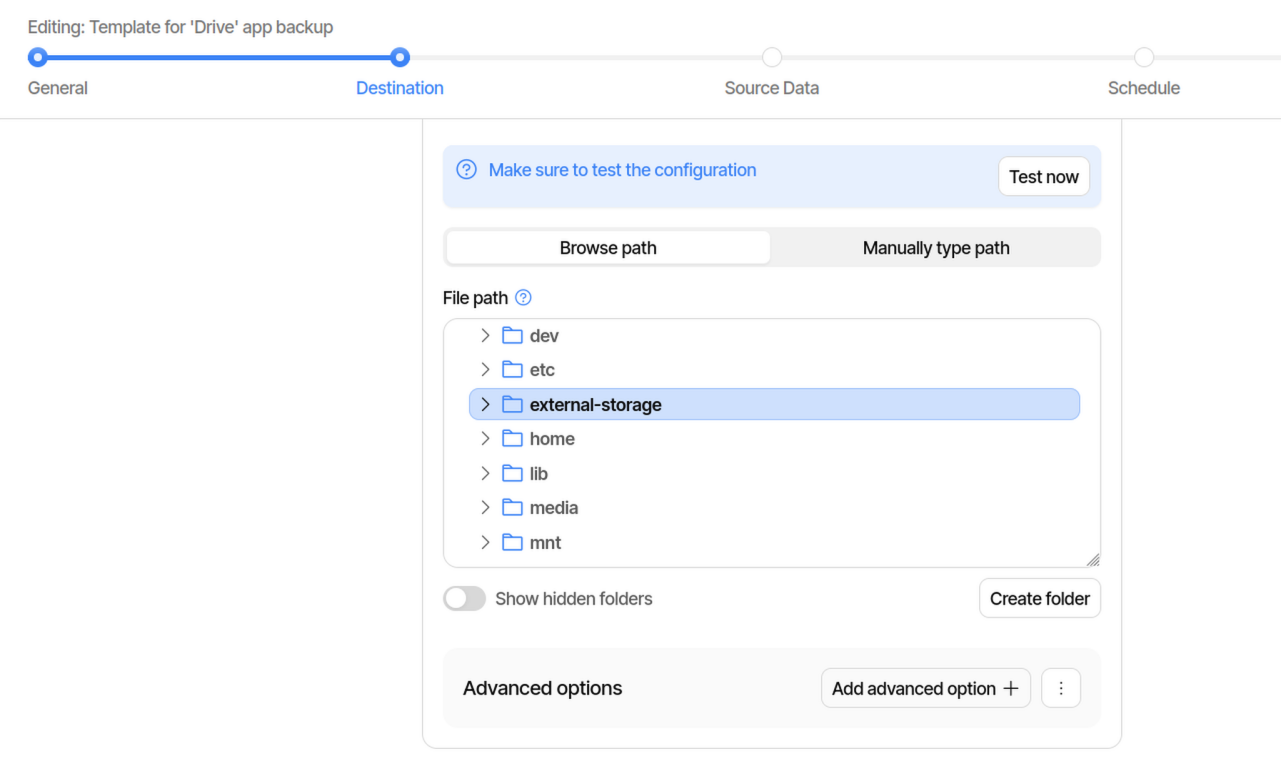
-
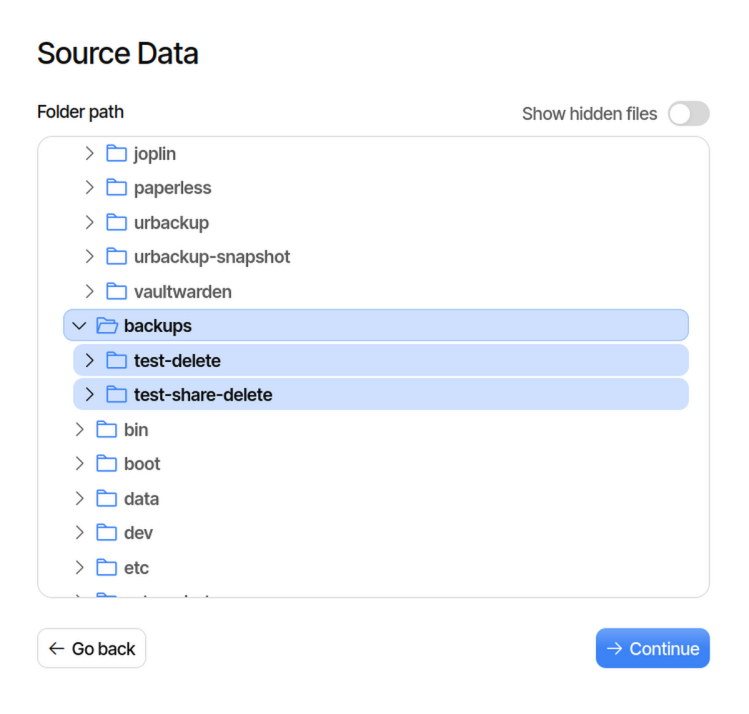
Source Data: In source data section, you will see the list of folders that are included in the backup. Template for each app includes the folders that are required to backup the app data.
Important: Do not remove any folder from the source data section as it may result in incomplete backup of the app data.
For Drive App: The source data section includes the user folders created under Drive app. If you have created shared folders then you will need to manually add the shared folders to the source data section. Shares created under Drive app are located at/backups/share-namepath (if they were created underduplicati/backups/share-namerelative path). You will need to add the shared folders to the source data section by navigating to the path and selecting the shared folders you want to backup.
-
Backup Schedule: You can configure the backup schedule to run automatically at specified intervals. This ensures that your data is regularly backed up without manual intervention.
App will be shutdown during backup process and will be restarted after backup is completed. You can also run the backup manually by pressing Run now button in Duplicati web interface. So schedule the backup at a time when you are not actively using the app to avoid any disruption. -
Retention Policy: Each backup is maintained as a separate backup set. You can configure the retention policy to keep a certain number of backup sets and delete older backups automatically. This helps in managing storage space effectively.
Restoring Backups
To restore your backups, follow these steps:
- Navigate to the Duplicati web interface.
- Select the backup you want to restore.
- Click on the Restore button.
- Choose the files or folders you want to restore.
- Specify the location where you want to restore the files.
- Click on the Restore button to start the restoration process.
Important: Make sure to have the correct passphrase available as it will be required to decrypt the backup files during restoration.
Restoring in case of Homecloud device failure
In case of Homecloud device failure, you can restore your backups on a new Homecloud device or Homecloud Virtual Appliance that can be deployed on any computer. It is available free of charge.
It ensures freedom of data portability and provides resilience in failure scenarios.
For setup instructions refer to: https://repo.homecloud.cloud/virtual-appliance/v1/Homecloud-HowtoGuide.pdf.
For restoring backups on a new Homecloud device, follow these steps:
- On the new Homecloud device or Homecloud Virtual Appliance, deploy Cloud Backup app.
- Open Duplicati web interface navigate on the left menu to Restore > Direct Restore from backup files section.
- Select the backup destination (cloud storage or external storage) where your backups are stored.
- Provide the required credentials and folder path to access your backups.
- Select the backup set you want to restore and provide the passphrase used for encryption.
- Select the backup set date and all the files and folders listed in the path.
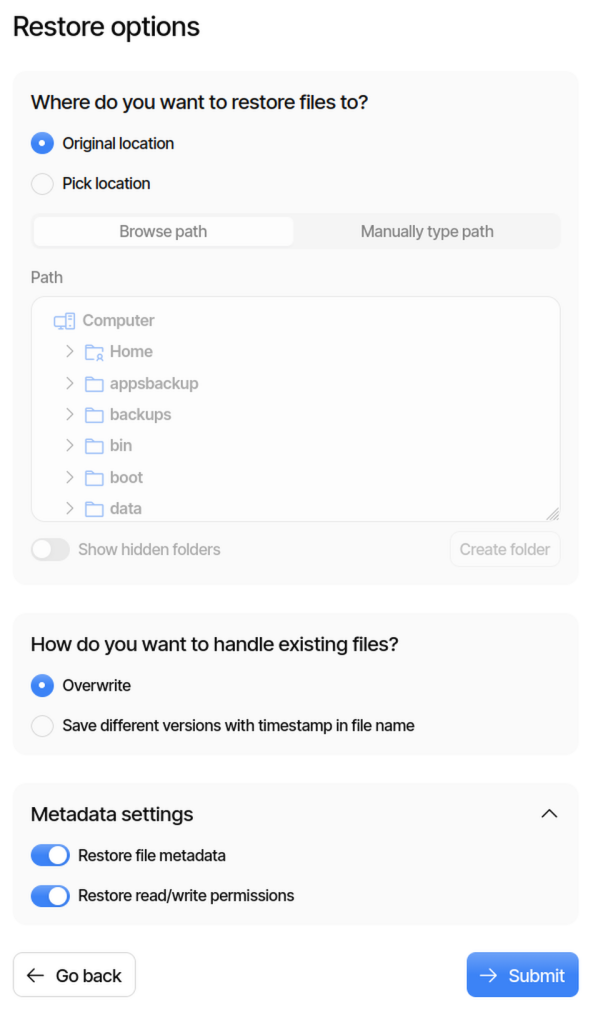
- In Restore options choose the
Original locationoption to restore the files to their original location. - In overwrite options select 'Overwrite' and in Metadata settings select 'Restore read/write permissions' and 'Restore file metadata'. Press Submit button to start the restoration process.
Warning: It will overwrite any existing data on the device
Restore process may take a while depending on the amount of data.
After restoration if the restored app status page shows starting/down then remove and redeploy the app from Homecloud admin consle under Configure > Apps. Navigate to respective App page and remove the app by checking the box and press Remove.
After that redeploy the app.
